Green-Screen Reaction
The speaker's background is keyed out so their floating figure sits over B-roll, a website or replacement visuals.
How to spot it
A presenter with a cutout silhouette appears superimposed in the foreground while footage or screenshots play behind them.
Verified on real video ads across 53 of 240 tracked brands (101 sightings across 79,497 ads).
Creative strategy
Why use Green-Screen Reaction
Superimposing a human cutout over screenshots, animations, or product pages mirrors one of TikTok's most native commentary formats. Viewers keep eye contact with an expressive face while reading proof, inspecting a quiz flow, or watching a demonstration behind them. That dual layer builds fast personal trust and makes static assets like reviews, studies, or checkout pages feel alive in the feed.
When to use it
- Walk viewers through a mobile quiz, SaaS dashboard, or bundle offer page during your closing call to action.
- React directly over customer reviews, press headlines, clinical charts, or competitor ingredient labels for supplements and skincare.
- Stage quick skits over store aisles, office backdrops, or 3D body animations without booking expensive filming locations.
When to skip it
- Skip green-screen cutouts in high-craft luxury, apparel, or food ads where polished in-camera cinematography drives product desire.
- Avoid floating presenters over cramped multi-column spreadsheets or tiny mobile text that viewers still struggle to read.
Production guide
How to produce Green-Screen Reaction
- 1
Film the speaker in bright, even light against a plain wall so automatic background removal produces crisp silhouette edges.
- 2
Scale the speaker down to roughly a quarter of the frame and anchor them in the lower left or lower right corner.
- 3
Zoom and scroll the background footage actively while the speaker points toward key proof lines, prices, or product visuals.
- 4
Check platform UI overlays so the floating presenter never collides with TikTok buttons on the right or captions below.
Common mistakes
- Leaving the cutout too large in the middle of the frame blocks the exact screenshot or demo viewers need to see.
- Filming in dim room light creates jagged, flickering halos around hair and shoulders that look sloppy on mobile.
- Talking over a motionless screenshot for ten seconds loses momentum when slow zooms or highlights could guide the eye.
Field notes
Observed in real ads
- 1
For the closing call to action, the speaker is keyed out without a background and floated over the scrolling mobile quiz and offer page.
- 2
The creator composites himself in front of a blurred photo of a supermarket aisle to stage a chaotic grocery store scene from home.
- 3
A small cutout of the speaker stands in the bottom-left corner while full-screen b-roll of her applying facial serum or a 3D gut animation plays behind her.
Also called
Cross-layer recipes
Pairs well with
Combine Green-Screen Reaction with patterns from other layers to assemble a complete ad.
 +1 sub
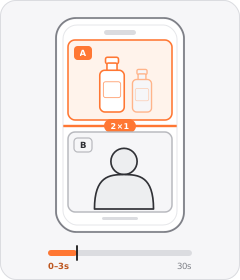
Split-Screen Hook
The ad opens with the frame divided into two panels playing or showing different visuals at once.
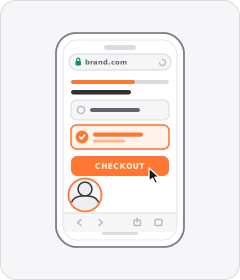
Website Walkthrough
The ad steps through the brand's website, quiz, or checkout flow on screen to show how ordering or signing up works.
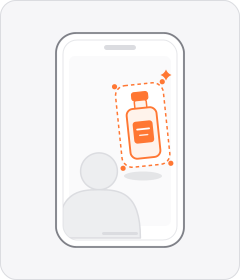
Floating Product Cutout
A background-removed studio photo of the product floats over live-action footage or a graphic backdrop.
 +1 sub
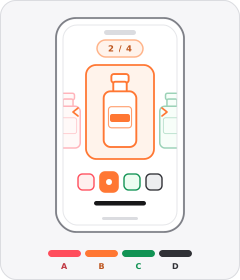
Range or Variant Roll Call
The ad steps one after another through several items, flavours, shades, or colourways from the brand's range.
Start free
Build a Green-Screen Reaction ad in minutes
Start with 7 days free in a ready-made demo workspace. No credit card required.